
In a busy store, several people edit products: owners, shop managers, sometimes an import tool. When a price or stock level suddenly looks wrong, you need to know what changed and who changed it.
What WooCommerce tracks by default
- Order notes record order status changes and many payment events.
- Products have no built-in change history: once someone saves a new price, the old one is gone.
Quick checks before you dig deeper
- Check whether a scheduled sale price has started or ended.
- Look for bulk edits or CSV imports run around that time.
- Check stock-management plugins or integrations that sync inventory.
- Ask who had shop manager access that day.
Keep a product change history
An activity log that understands WooCommerce records each product edit with the old and new value, for example a price change from $39 to $45, along with the user and time. The same log can cover coupons, refunds and store settings, so you have one place to check.
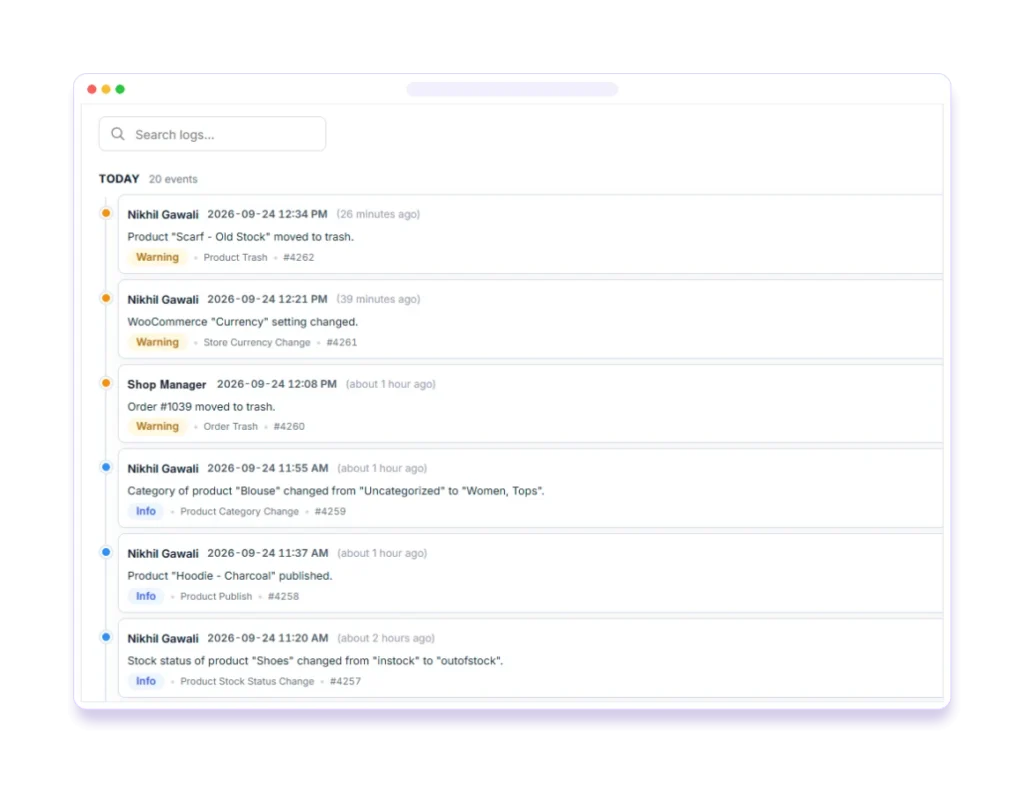
Tip: Pastmark logs WooCommerce product edits (price, stock, visibility and more), orders, refunds, coupons and store settings, with before and after values.